The Dabba TGE is getting closer, and if there’s one thing you need to have sorted before launch day, it’s your on-chain wallet. This guide covers what an on-chain wallet actually is, which ones to use, how to create and set up Phantom (we recommend) step by step, and how to stay safe while doing it.
So… What Even Is an On-Chain Wallet?
Let’s start from the beginning, because this is genuinely important to understand!
When most people first get into crypto, they buy tokens on an exchange like Binance or Coinbase. That’s fine for trading, but here’s the thing: when your tokens sit on an exchange, the exchange is actually holding them for you. You have an account balance, sure! But you don’t really own those tokens in the truest sense. The exchange does. You’re trusting them to keep your funds safe, available, and accessible.
Creating an on-chain wallet flips that completely. Instead of a company holding your assets, you hold them directly on the blockchain. There’s no middleman. No platform that can freeze your account, go bankrupt, or get hacked and take your funds with them. When you hold tokens in an on-chain wallet, you are the bank.
When you self-custody your assets, you are in full control of your wallet, your transactions, and your private keys.
What Does an On-Chain Wallet Actually Look Like?
You might be picturing something complicated, but it’s really just an app on your phone or browser that connects you to the blockchain. Here are some well-known examples across different blockchains:
- Phantom — the leading wallet on Solana, used by millions
- Solflare — another excellent Solana-native wallet with powerful features for power users
- MetaMask — the most widely used Ethereum wallet, available as a browser extension and mobile app
- Rainbow — a popular and beautifully designed Ethereum and multi-chain mobile wallet
- Trust Wallet — a multi-chain wallet that supports hundreds of blockchains
- Coinbase Wallet — different from the Coinbase exchange app; this one gives you direct on-chain access
Each of these connects you directly to the blockchain of your choice, lets you send and receive tokens, and allows you to interact with decentralized apps.
Which Wallet Should You Use for Dabba?
Since Dabba Network is built on Solana, you’ll need a Solana-compatible wallet. The good news is you’re not locked into any single option. Any Solana wallet will work when it comes to receiving and holding your Dabba tokens.
That said, we recommend either Phantom or Solflare. Both are battle-tested, widely used across the Solana ecosystem, and have strong security features built in. If you’re brand new to on-chain wallets, Phantom is the friendlier starting point. The interface is clean, the setup takes about two minutes, and it has a huge support community around it.
In this guide, we’re going to walk you through setting up Phantom from scratch. If you’d prefer Solflare, the process is very similar, but for the purposes of this walkthrough, we’ll use Phantom as our example.
Downloading Phantom App For Mobile
Before anything else: only download Phantom from the official website at https://phantom.com/download.
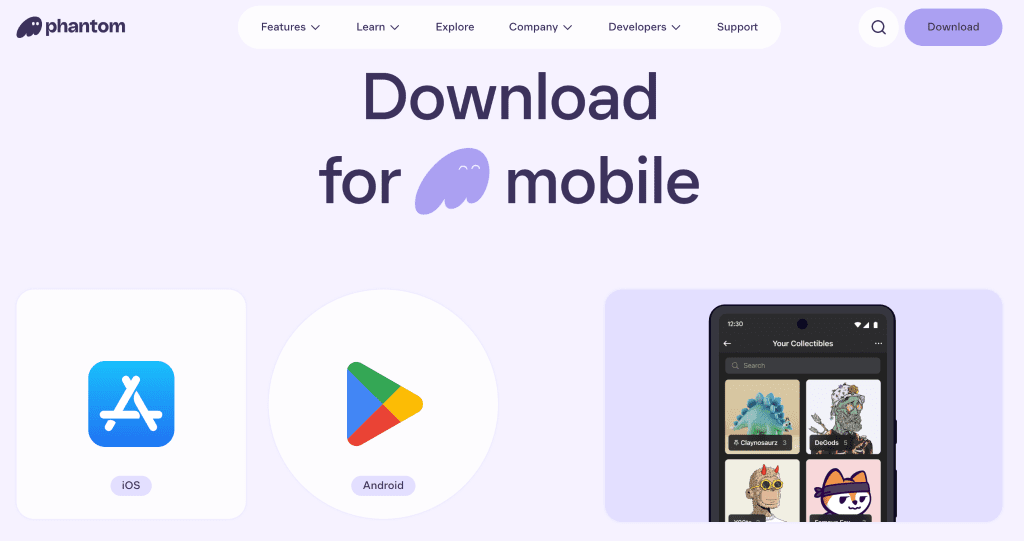
This sounds obvious, but it’s worth repeating. Don’t click an ad. Don’t trust a link someone sends you in a DM. Type phantom.com directly into your browser, and download from there.
Phantom is available as:
- A browser extension for Chrome, Brave, Firefox, and Edge
- Mobile app for iOS and Android
Most people use both the extension for desktop interactions and the app on the go. Either works fine to get started.
Setting Up Your On-chain Wallet With Phantom App — Step by Step
Once you’ve installed the Phantom app, open it up and select “Create New Wallet.” Here’s what happens next:
Step 1: Your Secret Recovery Phrase
This is the most important moment of the entire setup process, so slow down here.
Phantom will show you a sequence of 12 random words. This is called your Secret Recovery Phrase (also known as a seed phrase). Your recovery phrase cannot be changed. If you lose it, access to your wallet and funds cannot be restored. Anyone with your recovery phrase can fully control your wallet.
Write these 12 words down on paper, and store somewhere physically safe. This phrase is the master key to everything in your wallet, so treat it accordingly.
Step 2: Set Up Your Password or Biometrics
On mobile, your wallet is protected by your device’s authentication such as Face ID or fingerprint. On the browser extension, it is protected by a password.
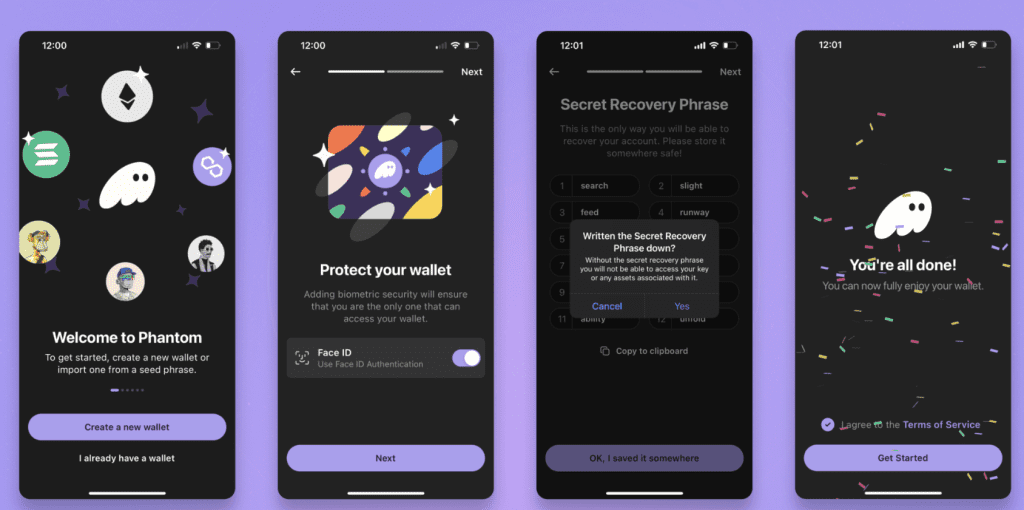
Step 3: You’re In
That’s it. Your wallet is live. You’ll see your public wallet address. It’s a long string of letters and numbers. This is what you share with others when you want to receive tokens. It’s completely safe to share, like giving someone your bank account number to send you money.
Your wallet is now connected directly to the Solana blockchain. No company is holding your funds. You are.
You can use the same address across different on-chain wallets.
The Easy Way – Sign In with Google or Apple On Desktop
You can also set up a Phantom wallet without the app. You don’t need to be technical to set this up. Phantom also lets you create a wallet using your existing Google or Apple account, no complicated setup, no jargon.
Here’s all you do:
- Download the Phantom browser extension from https://phantom.com/download.
- Open the Phantom browser extension or app
- Tap Create a New Wallet, then Continue with Email
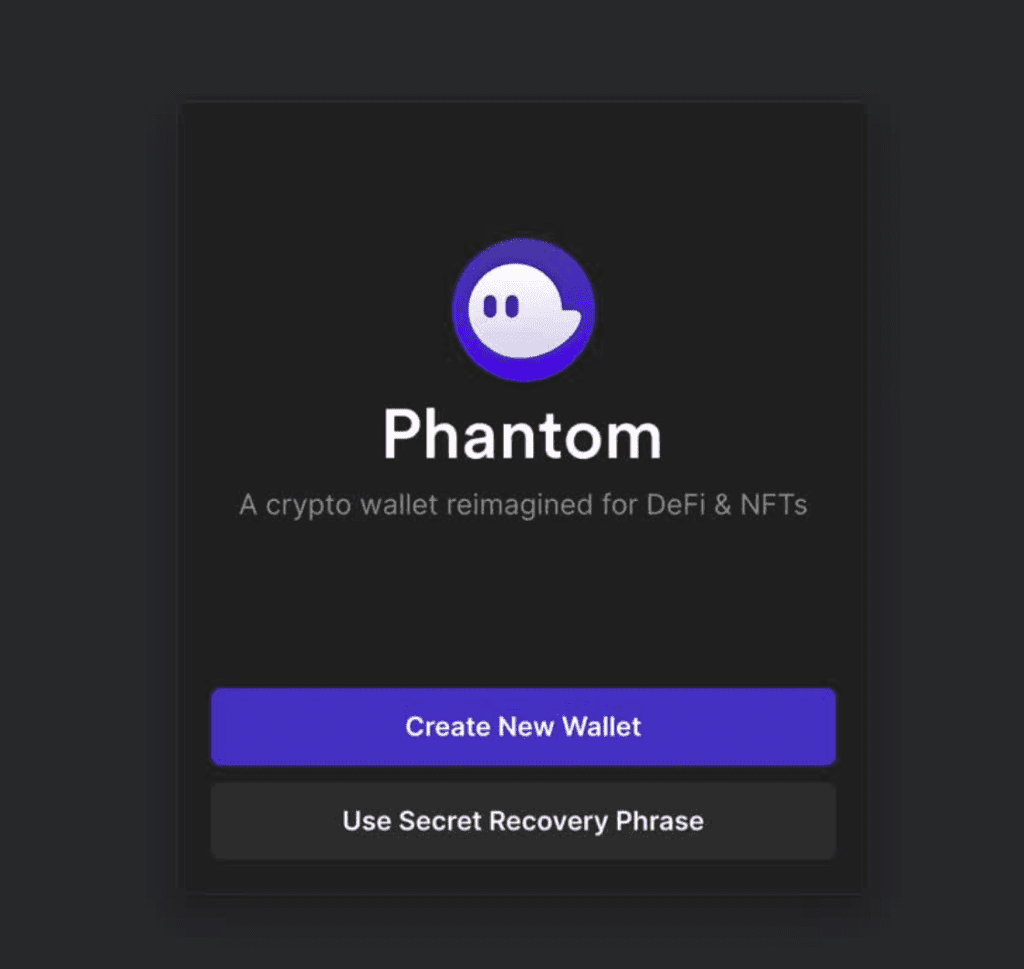
- Choose Google or Apple and sign in
- Set a four-digit PIN. You’ll need this along with your email to restore your wallet later
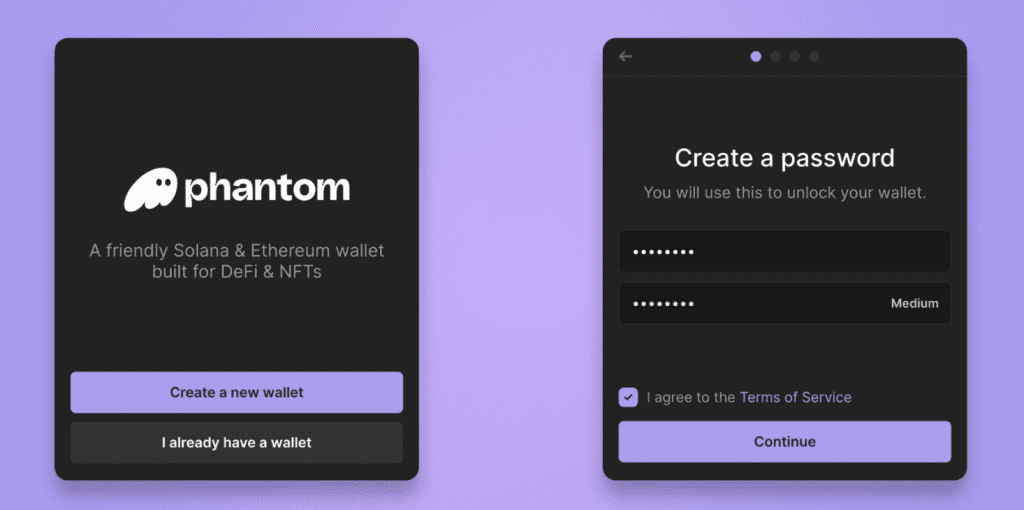
- Create a password to unlock Phantom on your current device (at least 8 characters)
- Pick your Phantom username and you’re done
That’s it. Your wallet is live.
How Is This Secure?
This type of wallet is called a seedless wallet. Your account is protected by two things working together: your email and your PIN. Neither one alone is enough to access or restore your wallet, so losing one doesn’t mean losing everything.
Your seed is encrypted and distributed across independent systems, meaning no single party, not even Phantom can access it.
One Thing You Must Do After Setup ⚠️
Your wallet also has a 12-word Secret Recovery Phrase. Think of it as your ultimate backup.
Go to Settings → Security & Privacy → Show Recovery Phrase, write it down on paper, and store it somewhere safe offline. If you ever lose both your PIN and your recovery phrase, wallet access cannot be recovered by anyone.
For more information: https://help.phantom.com/hc/en-us/articles/32775281256851-Create-a-new-Phantom-wallet-with-Google-or-Apple
Importing Your Phantom Address
If you’re using multiple on-chain wallets, you don’t have to manage them separately.
You can easily import your Phantom wallet into other on-chain wallets like MetaMask and keep everything in one place which makes it simpler to track assets and manage transactions in one place.
For example, MetaMask has a helpful guide on how to import an existing wallet using your private key or recovery phrase.
👉 Learn how to do it here: https://support.metamask.io/configure/networks/navigating-solana/#importing-a-solana-account-from-phantom-or-other-wallets
This is a quick way to streamline your setup and manage your wallets more efficiently.
The Devnet Feature — Why It Matters for Dabba’s Testnet Launch
Here’s a feature most people never discover, and it’s directly relevant to Dabba’s Testnet Launch.
What Is Devnet?
Testnet and Devnet are testing environments used to try apps, features, and transactions without risking real funds, so developers and users can safely experiment before anything goes live.
Think of it like a practice game. Everything looks and functions exactly like the real Solana network, same wallet, same interface, same transaction flow, except the tokens have zero real-world value. It’s purely for testing.
This is exactly how you’ll participate in the Dabba Testnet. You’ll switch Phantom to Devnet mode, interact with the network, test transactions, and get a feel for everything, before a single real token is on the line.
How to Enable Devnet on Phantom
Here’s the step-by-step process:
Step 1: Open Phantom and tap the Settings icon in the top left corner.
Step 2: Tap Wallet Settings.
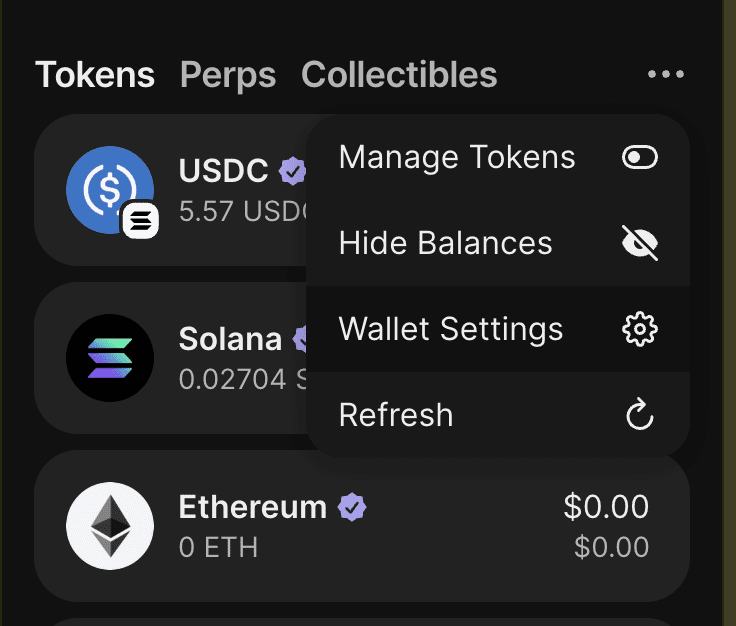
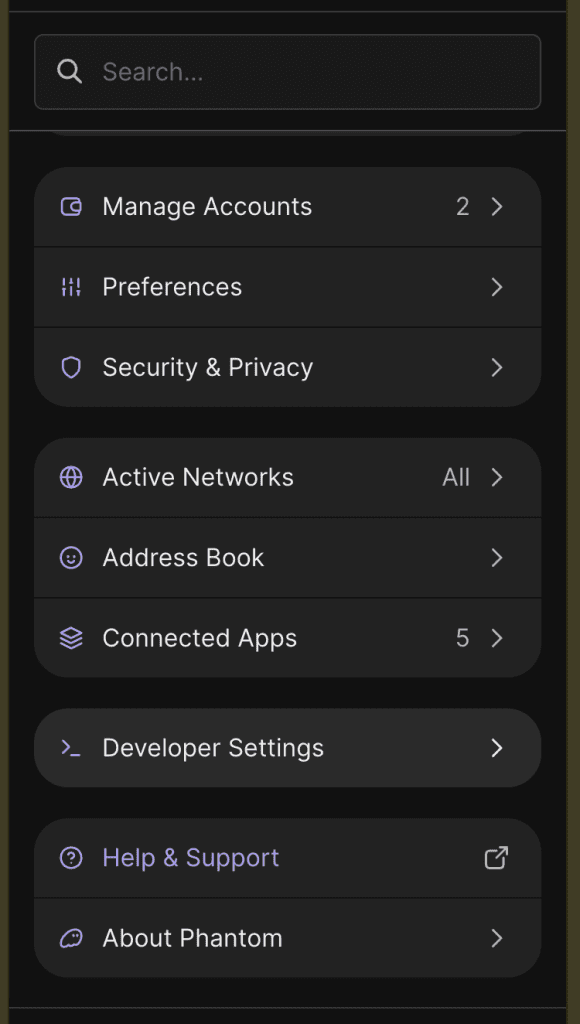
And then from the dropdown select Developer Settings.
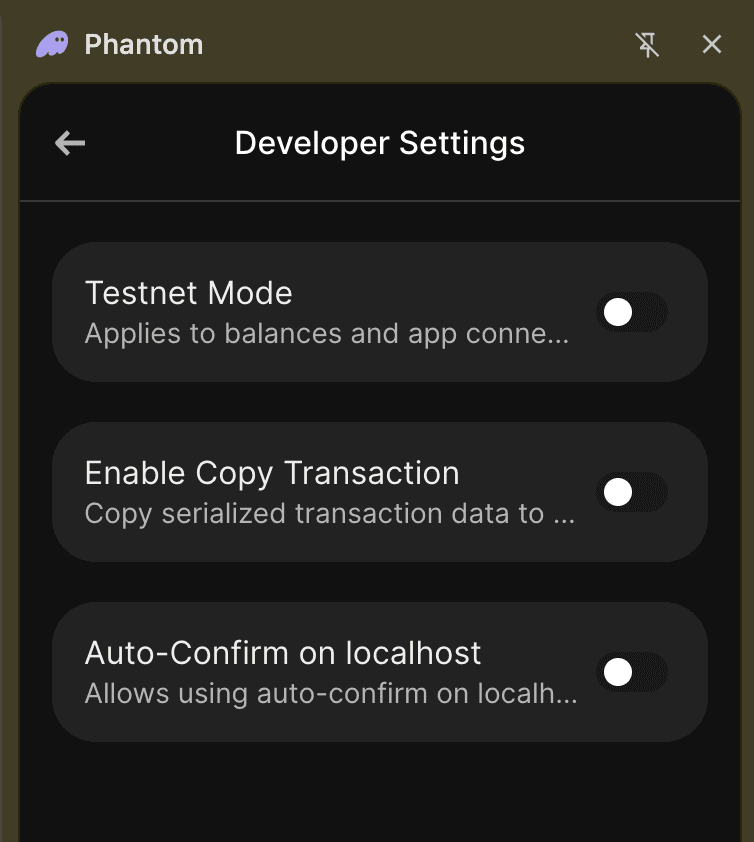
Step 3: Enable Testnet Mode. A network dropdown will appear.
Step 4: Select the Solana Network tab and choose Solana Devnet. (Yes, it says Devnet, not Testnet, this is correct and intentional.)
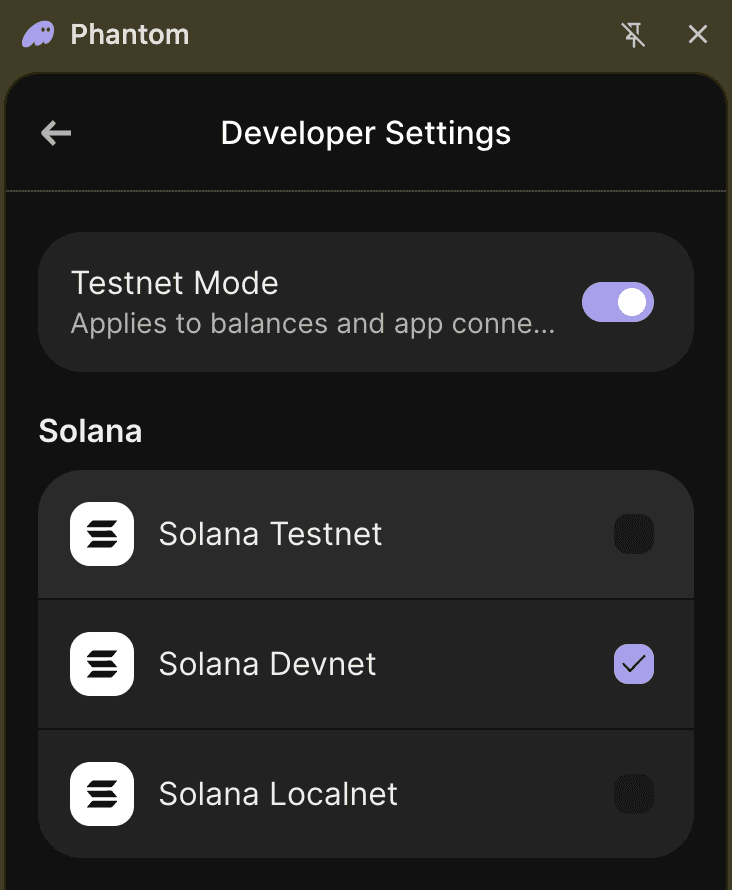
Step 5: Go back to your homescreen.
You’re now on Devnet. Your wallet address is the same, but you’re operating on the test network, completely separate from real Solana.
Getting Free Devnet SOL
To interact with anything on Devnet, you’ll need a small amount of Devnet SOL to cover transaction fees. It’s completely free and takes under a minute.
Visit the Solana Faucet, paste your wallet address, select Devnet, and request your airdrop. Users can typically claim up to 5 SOL per request on Devnet, with requests available twice every 8 hours.
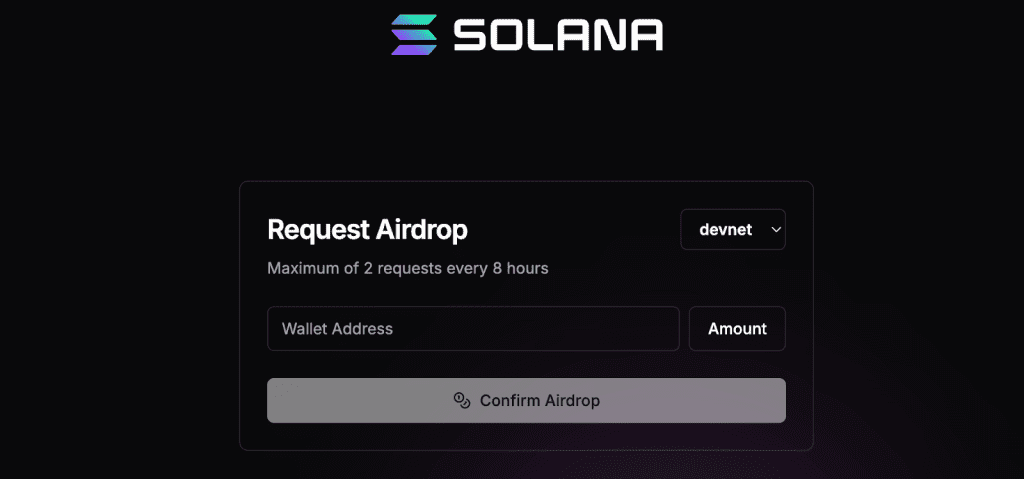
Don’t worry when this SOL shows no dollar value. Devnet tokens cannot be transferred to mainnet or cashed out. They exist solely for testing.
Alternative way to get free Devnet SOL:
• Join the Solana Discord
• Head to the #faucet channel
• Type: /airdrop <your-wallet-address>
The bot will automatically send Devnet SOL to your wallet.
Switching Back to Mainnet
If you want to switch to mainnet, all you need to do is:
Go to Settings → Developer Settings, turn off Testnet Mode, and you’re back on real Solana.
Best Practices to Actually Keep Your Wallet Safe
Setting up the wallet is the easy part. Keeping it safe is where most people slip up. Here’s what you need to build into your habits from day one.
Protect your seed phrase like it’s cash
We’ll say it again because it genuinely matters this much. Write down your seed phrase on paper and store it somewhere secure. Never leave it on your phone or in digital storage.Some people keep two physical copies in separate locations. Some use fireproof safes. Whatever your approach, keep it offline and keep it private.
And if anyone ever asks you for your seed phrase, whether they’re claiming to be Phantom support, a Dabba team member, or a helpful stranger in Discord, it is a scam. Phantom will never ask for your Secret Recovery Phrase or prompt you to sign a transaction outside of the wallet interface.
Enable auto-lock
Go into Settings → Security & Privacy and set your wallet to auto-lock after a short period of inactivity. If you walk away from your computer or lose your phone, the wallet locks itself automatically.
Read every transaction before you approve it
Before you tap “Approve” on anything, take five seconds to actually read what you’re signing. Phantom scans transactions and proactively flags anything suspicious — if you’re interacting with a blacklisted program or something looks like a wallet drain, you’ll get a clear warning in plain language. Trust those warnings. If something doesn’t look right, cancel first and investigate after.
Only connect to sites you actually trust
Only connect your wallet to reputable, verified sites. Be especially cautious with links sent over DMs or found in comment sections and tweets. Before connecting to any dApp or website, double-check the URL manually. Scammers build near-identical fake sites — “phantonn.com” instead of “phantom.com” — and one misread character can cost you everything.
Ignore unsolicited tokens and NFTs
Scammers airdrop NFTs or tokens to wallets with messages like “Claim your reward” — these links lead to malicious apps that attempt to drain your wallet. Never interact with unsolicited tokens or NFTs. You can report and burn them inside Phantom without ever visiting the scam link.
Keep the app updated
Phantom regularly releases security patches. Always run the latest version, outdated software is one of the easiest vulnerabilities to exploit.
Consider separating your wallets
Consider using separate wallets for daily transactions versus long-term holdings. Your “hot wallet” handles day-to-day activity. Your main wallet, where you hold larger amounts, stays mostly untouched. If the hot wallet ever gets compromised, your core holdings are safe.
Common Mistakes to Avoid
❌ Screenshotting or digitally saving your seed phrase Screenshots get backed up to cloud storage. Cloud accounts get hacked. Paper does not get hacked.
❌ Clicking wallet links from DMs Scammers often pose as community members and send direct messages directing users to fake sites where they sign a malicious transaction that drains their wallet. The Dabba team will never DM you first asking you to connect your wallet.
❌ Downloading from unofficial sources Always go to phantom.com directly. Not an ad. Not a link in a group chat.
❌ Rushing through transaction approvals Five seconds of reading can save your entire wallet. Slow down before you tap approve.
❌ Using one wallet for everything Hot wallet for active use. Separate wallet for long-term storage. Simple, effective.
Quick Reference
| ✅ Do | ❌ Don’t |
| Download Phantom from phantom.com only | Click wallet links from DMs or ads |
| Write your seed phrase on paper | Screenshot or digitally store your seed phrase |
| Read every transaction before approving | Rush through approvals |
| Enable auto-lock and biometrics | Share your seed phrase with anyone, ever |
| Use Devnet for Testnet participation | Use your main wallet for test transactions |
| Keep the app updated | Run outdated versions |
You’re Ready
Getting your On-chain wallet set up is honestly the most important thing you can do right now before the Dabba TGE. It takes five minutes to set up, but the habits you build around protecting it will matter for a long time.
And if you have any questions at all, drop them in the Dabba Discord. Our community has your back.
Your wallet. Your tokens. Your network. Let’s go!